What Is a Network Security Key?
Table of Contents
Your router has a key protecting everything inside your network. This guide explains what it is, how it works, where to find it, and how to make sure it’s actually doing its job.
What is a network security key, really?
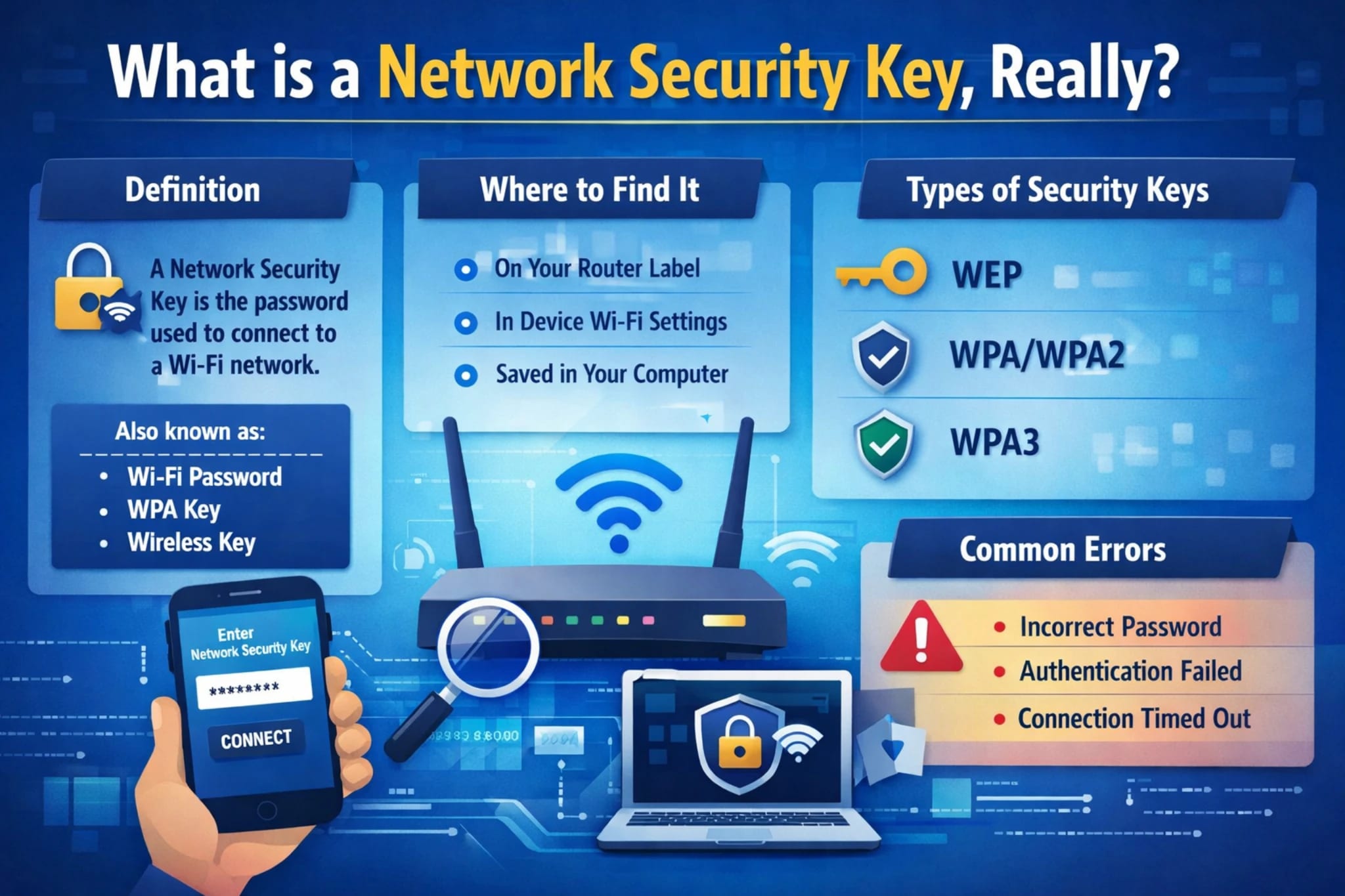
Think of your home Wi-Fi as a locked building. The network security key is the passcode that lets someone through the door. Without it, no device can join your wireless network, and the data flowing inside stays encrypted from anyone trying to listen in from outside.
In technical terms, a network security key is a passphrase or cryptographic string that authenticates devices trying to connect to a wireless network.
It also encrypts the data being transmitted across that connection, which is what actually keeps your browsing, banking, and messaging private. You’ll also hear it called a Wi-Fi password, WPA key, or wireless passphrase. They all refer to the same thing.
The reason this matters more than most people realise: your home network is under constant pressure. According to a 2024 IoT Security Landscape report by Bitdefender and NETGEAR, home network devices face an average of 10 attacks every 24 hours.
That’s not a rare event; it’s the background noise of being online. A strong, properly configured network security key is one of the most effective barriers you have against that noise.
What many people overlook is that the key isn’t just about keeping strangers off your Wi-Fi. It’s about preventing man-in-the-middle attacks, where someone intercepts the data moving between your device and your router.
Weak or default keys are particularly dangerous here because attackers can crack them in minutes using freely available tools, then silently monitor everything on your network without you ever knowing.
According to IBM’s Cost of a Data Breach Report 2024, the global average cost of a data breach reached $4.88 million, a 10% rise from the year before. While that figure covers enterprise environments, the same credential-based vulnerabilities exist at home.
And research from Huntress shows that nearly 46% of people had a password stolen in 2024 alone. The network security key is your first layer of protection, so it’s worth understanding properly.
Check out our latest blog on How to Fix Kernel Security Check Failure and Check for Malware
Types of network security keys explained.
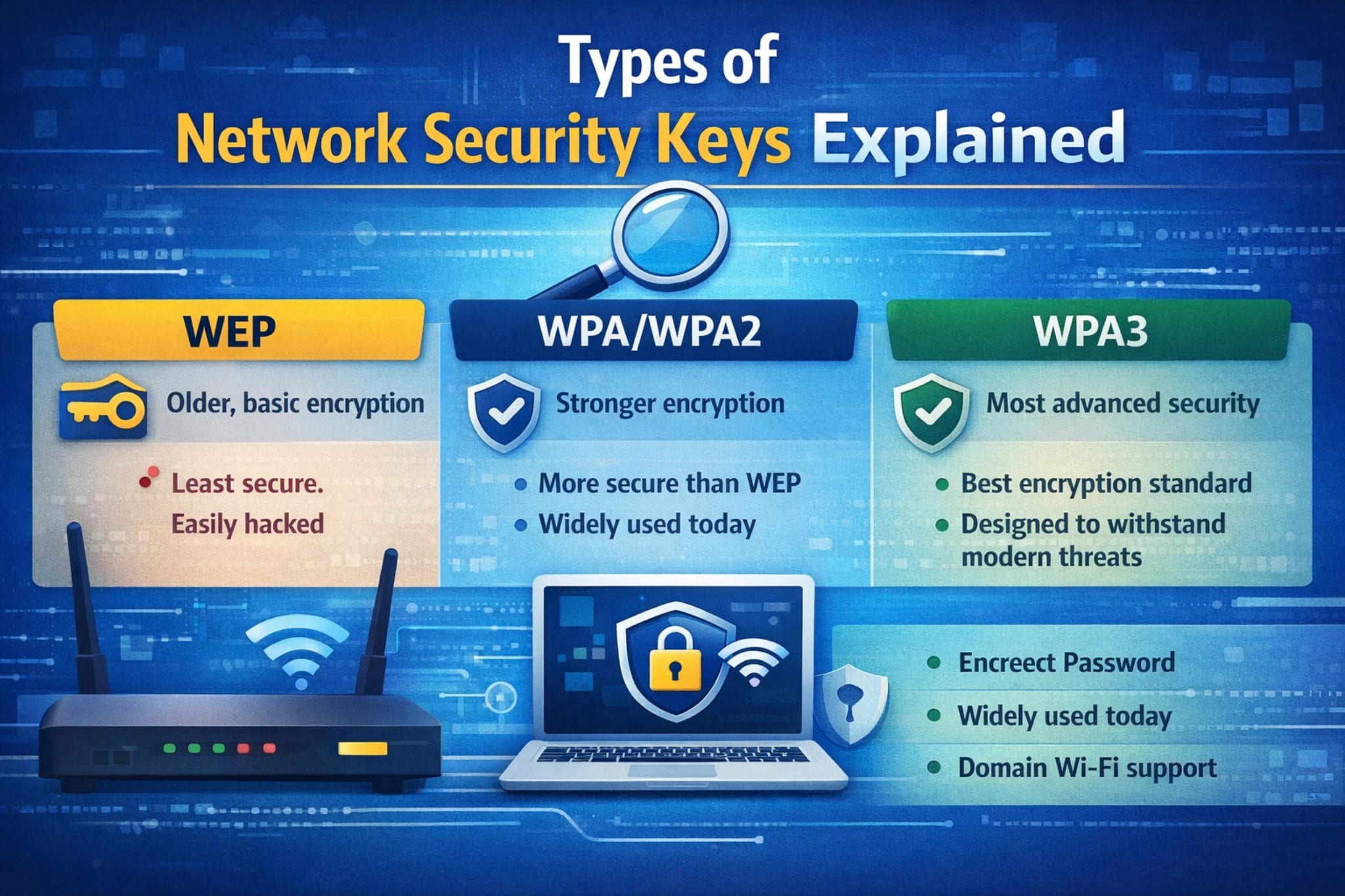
Not all network security keys are built the same. The encryption protocol your router uses determines how strong your key actually is, how it’s generated, and how vulnerable it is to attack.
Over the years, Wi-Fi security has gone through four major protocols, each one built to fix the weaknesses of the last.
WEP (Wired Equivalent Privacy) was the first. Introduced in 1997, it seemed solid at the time, but researchers found serious flaws in how it used the RC4 encryption algorithm.
By the early 2000s, a WEP-protected network could be cracked in minutes using freely available software. Today, if your router is still running WEP, your network is effectively unprotected.
WPA (Wi-Fi Protected Access) arrived in 2003 as an emergency fix. It patched the worst of WEP’s flaws and introduced TKIP (Temporal Key Integrity Protocol) to dynamically change encryption keys. It was better, but it was always meant to be temporary. WPA became obsolete in 2004 when WPA2 launched.
WPA2 became the global standard and stayed dominant for nearly 15 years. It uses the AES (Advanced Encryption Standard) algorithm with 128-bit keys, which is substantially more secure. As of today, most organisations still run WPA2.
It’s solid for everyday use, though it has known vulnerabilities, including the KRACK (Key Reinstallation Attack) vulnerability discovered in 2017, which allows attackers to potentially decrypt traffic by manipulating the handshake process.
WPA3 is the current gold standard. Released by the Wi-Fi Alliance in 2018 and mandatory for Wi-Fi CERTIFIED devices since July 2020, it replaces WPA2’s four-way handshake with Simultaneous Authentication of Equals (SAE), which blocks offline dictionary attacks.
It also introduces individualised data encryption, meaning each device on the network gets its own unique encryption key. Research published in IEEE Access notes that WPA3-Enterprise uses 192-bit cryptographic strength, making it suitable for sensitive corporate and government networks.
If your router still shows WEP or WPA (not WPA2/3) in its wireless settings, you should replace it. These protocols have been publicly crackable for over a decade.
Read More On Cyber Security Assessment: Types, Process & Free Checklist
WPA2 vs WPA3: a side-by-side comparison
To make it easier to see how these two standards actually differ in practical terms, here’s a direct comparison across the key criteria that matter for home and business users:
Feature | WPA2 | WPA3 |
|---|---|---|
Year introduced | 2004 | 2018 |
Encryption standard | AES-128 (CCMP) | AES-128 personal, AES-192/256 enterprise |
Authentication method | PSK four-way handshake | SAE (Dragonfly handshake) |
Offline dictionary attacks | Vulnerable | Blocked by design |
Forward secrecy | No | Yes |
Open network protection | None | OWE (Opportunistic Wireless Encryption) |
Management frame protection | Optional | Mandatory |
Device compatibility | Very wide (all modern devices) | Newer devices only (post-2019 mostly) |
Current adoption | Dominant in most networks | Growing; mandatory for Wi-Fi CERTIFIED since 2020 |
Known vulnerabilities | KRACK attack (2017) | Dragonfly side-channel (partially patched) |
One practical note: many enterprise environments run both WPA2 and WPA3 in a “transitional mode” to support older devices. This works, but it introduces a downgrade attack risk where an attacker can force a WPA3 device to connect using WPA2 instead, bypassing the newer protections.
Check out our cybersecurity analysis on Voozon.com: What Is Voozon? Security & Privacy Guide
Where to find your network security key?
This is the question most people land on this page asking. The answer depends on what device you’re using and whether you’ve changed the default key or not. Here are the four main ways to retrieve it.
On your router
The fastest option for most people. Look at the physical label on the back or bottom of your router. It’ll usually be labelled “Password,” “Network Key,” “WPA Key,” or “Wireless Key.” This is the factory default, which works as long as you haven’t changed it since setting up your router.
On a Windows PC already connected
1. Open Settings, then go to Network and Internet.
2. Click Wi-Fi, select your network name, then click Properties.
3. Scroll down to “Network security key” and click Show. Your password will appear.
On a Mac already connected
1. Open Keychain Access from Spotlight (Cmd+Space, type “Keychain Access”).
2. Search for your Wi-Fi network name in the search bar.
3. Double-click the network entry, then check “Show password.” You’ll need to enter your Mac login password to confirm.
Via your router’s admin panel
1. Open a browser and type 192.168.1.1 or 192.168.0.1 into the address bar.
2. Log in with your router admin credentials. If you haven’t changed these, the defaults are usually printed on the router label.
3. Navigate to Wireless Settings or Wi-Fi Security to view or change your current key.
If all else fails and you can’t retrieve the key from any connected device, a factory reset on your router will restore the original default key printed on its label. Note that this will disconnect all devices and reset any custom settings.
How to use your network security key?
Once you have your key, using it is straightforward. When you try to connect a new device to your Wi-Fi, your operating system will show a prompt asking for the network password. Type in your security key exactly as it appears, paying attention to capital letters, numbers, and any special characters since it’s case-sensitive.
On mobile devices, you can also share the key via QR-Code on Android similar to how businesses can share venue details using a google maps qr code or use Apple’s automatic Wi-Fi sharing feature on iOS, which sends the key directly to a trusted nearby Apple device without you having to type it out.
On mobile devices, you can also share the key via QR-Code on Android, or use Apple’s automatic Wi-Fi sharing feature on iOS, which sends the key directly to a trusted nearby Apple device without you having to type it out.
For smart home devices like cameras, speakers, or thermostats, the setup process usually walks you through entering the key during the initial configuration via a companion app. The key itself is the same one you use for all your other devices; there’s no separate password for IoT devices unless you’ve set up a dedicated guest or IoT network, which is actually good practice covered in the next section.
You can check our guide on Data Governance Frameworks: A Practical Guide
Common errors and how to fix them

Most connection failures come down to a handful of predictable issues. Here’s how to work through them without frustration.
Error | Likely cause | Fix |
|---|---|---|
“Incorrect password” on first attempt | Typo or case error | Re-enter carefully; check Caps Lock is off |
Network not appearing inthe list | ISP issue or DNS problem | Restart router; check ISP status |
Can’t connect after changing the key | Wrong frequency band or SSID hidden | Check router is broadcasting; try 2.4GHz vs 5GHz |
The device is still using old saved credentials | Network not appearing in the list | “Forget” the network, then reconnect with the new key |
Router admin login not working | Default credentials changed or forgotten | Factory reset the router, or check ISP-provided documentation |
WPA3 is not supported by older hardware | WPA3 not supported by older hardware | Enable WPA2/WPA3 transition mode in router settings |
One surprisingly common issue: if you recently had your internet provider replace your router, the new device will have a different default security key. The key from the old router won’t work on the new one.
Tips to genuinely strengthen your network
There’s a real gap between having a network security key and actually having a secure network. The key is the foundation, but the house needs more than a foundation. These are the steps that actually move the needle, backed by current security research.
The single most impactful thing you can do is create a strong, unique key. Research from JumpCloud found that a 12-character complex password takes 62 trillion times longer to crack than a 6-character one.
That’s not a small difference. Aim for at least 16 characters using a mix of uppercase and lowercase letters, numbers, and symbols. Avoid anything with personal meaning: names, birthdays, and addresses are the first things automated tools try.
Upgrade to WPA3 if your router supports it. If you bought your router before 2019, it likely doesn’t, and a firmware update won’t add WPA3 since it requires hardware-level support. In that case, WPA2 with a strong key is still a solid choice.
Set up a separate guest network for visitors and smart home devices. This keeps IoT devices, which are often less secure by design, isolated from the network where your computers and phones operate.
A 2024 study found that 672.6 million households worldwide will use smart home devices by 2027. Keeping those devices segmented reduces the blast radius if one gets compromised.
Change your key every six to twelve months, particularly if you’ve had guests on your network or if any devices have been lost or sold. According to a Bitdefender consumer security survey, one in four people uses the same password across at least six accounts, and network keys are no exception.
Treat your Wi-Fi key like a real key: don’t share it casually, don’t write it in obvious places, and change it if you think it’s been compromised.
Finally, disable WPS (Wi-Fi Protected Setup) in your router settings. WPS was designed to make device pairing easier, but it has known brute-force vulnerabilities that let attackers guess the PIN in a matter of hours. Most security professionals recommend turning it off entirely.
Use at least 16 characters with mixed character types
Enable WPA3 or WPA2 (never WEP or plain WPA)
Set up a guest network for visitors and smart home devices
Disable WPS in your router’s admin panel
Change your key every 6 to 12 months
Enable your router’s built-in firewall if it’s available
Keep router firmware updated to patch security vulnerabilities
What real users say (G2 and Capterra reviews)
When people actually deal with network security and password management day to day, their feedback tends to be specific and honest. Here’s what verified users on G2 and Capterra have shared about managing their network credentials and security tools:
Director of IT, Environmental Services (Capterra)
Capterra
“A helpful tool to get teams to comply with advanced security features that are necessary in today’s world.” The reviewer highlighted that getting staff to actually use strong credentials and network security consistently was the core challenge solved.
Keeper Security enterprise user
Verified enterprise review (G2)
G2
“It solved my problem of remembering many passwords. It helps me to store all my passwords in one place safely. It also offers to keep my sensitive documents securely.” The user noted that deployment was seamless, with Keeper’s support team facilitating onboarding from day one.
Cybersecurity professional
Kaspersky Password Manager review (G2)
G2
“Since being a cybersecurity professional, I keep informing my clients about the dangers of reusing passwords. Using a program like this makes this complex issue much easier to navigate. The added features of password leak detection make this one of the best tools I’ve come across.”
These reviews come from G2 and Capterra, two of the most widely used verified software review platforms. G2 hosts over 3 million verified reviews; Capterra has over 2.5 million. Both require identity verification before a review is published.
Final thoughts
A network security key isn’t just a technicality you deal with once when setting up a new router. It’s a living part of your home’s digital security, and treating it that way makes a real difference.
The numbers tell a consistent story: most breaches trace back to weak or reused credentials, home networks face daily attack attempts, and the majority of people still don’t take password hygiene seriously enough. That’s not a criticism, it’s a gap worth closing.
The good news is that the steps are practical. Use WPA3 if you can. Create a long, unique key. Set up a guest network. Update your credentials periodically. These aren’t complicated actions, and they shift your exposure meaningfully.
Understanding what your network security key actually does, and how the protocols behind it work, puts you in a genuinely better position than most home and small business users. The technical layer doesn’t need to be intimidating. It just needs to be set up correctly and kept current.
Frequently Asked Questions
Can someone access my network if they know my security key?
Yes. Anyone with your network security key can connect to your Wi-Fi and potentially intercept unencrypted traffic on the local network. If you suspect someone unauthorised has your key, change it immediately in your router’s admin panel and reconnect your own devices.
Does changing my network security key disconnect all devices?
Yes, every device connected to your Wi-Fi will be disconnected and will need the new key to reconnect. It’s worth doing during a quiet period and having your new key ready to share with household members or colleagues before making the change.
Is a longer network security key always more secure?
In practice, yes. A 16-character key with mixed characters is exponentially harder to crack than an 8-character one, even if both technically meet minimum requirements. JumpCloud research shows a 12-character complex password takes 62 trillion times longer to crack than a 6-character version. Length and randomness both matter.
Can I have a different security key for guests and my main devices?
Yes, and it’s highly recommended. Most modern routers support guest networks, which run on a separate SSID with their own security key. Guests can connect to the internet without ever touching your main network, where computers, phones, and sensitive data live.
What happens if I forget my network security key and have no connected devices to retrieve it from?
Your only option at that point is a factory reset on your router. This restores the original default key printed on the device label, but also clears any custom settings you’ve made, including port forwarding rules, parental controls, and custom DNS settings. After resetting, you can reconfigure everything and set a new key that you actually store somewhere secure.