Table of Contents
To check for malware on Mac in 2026, update macOS, inspect suspicious apps, review login items, scan with trusted security tools, remove harmful browser extensions, and check privacy permissions. Most Mac malware today is adware, spyware, or browser hijacking rather than classic viruses.
You probably chose a Mac because you wanted speed, privacy, and fewer security headaches. That reputation still holds up in 2026, but Macs are no longer ignored by cybercriminals. As Apple devices became more popular, attackers followed the users.
That means you can no longer assume your Mac is safe just because it runs macOS. Fake browser alerts, hidden adware, malicious extensions, password stealers, spyware, and Trojan apps now target Mac users more than ever.
The good news is this: checking your Mac for malware is easier than most people think. You don’t need advanced technical skills. You just need the right process.
In this guide, you’ll learn how to check for malware on Mac in 2026 using built-in Apple tools, manual inspection steps, and trusted scanners. You’ll also learn how to remove threats and prevent them from coming back.
You can also explore our best laptop for cyber security guide to find the right device for security testing, SOC work, virtualization, and everyday cybersecurity tasks.
Can Macs Get Malware in 2026?
Yes, absolutely.
Macs are still more secure than many systems because Apple includes strong protections like:
Gatekeeper
XProtect
App sandboxing
Notarization
Privacy permissions
Security updates
But none of these tools can stop every threat, especially if a user installs something unsafe or grants access accidentally.
Today’s Mac threats often rely on tricking users rather than hacking the operating system directly.
Common Malware Types on Mac
Adware
Floods your browser with ads, redirects, or fake alerts.
Browser Hijackers
Change your homepage or search engine without permission.
Spyware
Attempts to monitor activity or steal credentials.
Trojans
Looks like useful software, but installs malicious components.
Crypto Miners
Uses your Mac’s processing power in the background.
Phishing Loaders
Designed to steal passwords, banking info, or Apple ID credentials.
So yes, Macs can get malware, and checking regularly is smart.
Signs Your Mac Might Have Malware
Before running tools, look for warning signs. Malware often reveals itself through behavior changes.
Performance Issues
Mac suddenly slow
Fans running hard during light use
Overheating when idle
Apps freezing often
Battery draining fast
Browser Problems
Random pop-ups
Search redirects
Homepage changed
New tabs opening
Notifications from strange websites
Account or Security Problems
Password reset emails you didn’t request
Apple ID alerts
Browser saved passwords are disappearing
Security prompts you don’t recognize
Strange Apps
Unknown software in Launchpad or Applications.
If several of these are happening together, it’s time to investigate.
Quick Comparison: Best Ways to Check for Malware on Mac
Method | Best For | Difficulty | Cost |
|---|---|---|---|
Update macOS | Basic security | Easy | Free |
Activity Monitor | Suspicious processes | Easy | Free |
Login Items | Startup malware | Easy | Free |
Browser cleanup | Adware removal | Easy | Free |
Manual app review | Unknown apps | Medium | Free |
Anti-malware scanner | Full scan | Easy | Free/Paid |
Step 1: Update macOS first

Before anything else, update your system.
Apple regularly updates malware definitions and security patches.
How to Update Your Mac
Click Apple menu
Open System Settings
Select General
Choose Software Update
Install available updates
This step alone can remove exposure to older vulnerabilities.
Step 2: Check Activity Monitor for Suspicious Processes

Activity Monitor is one of the best built-in ways to check for malware.
Open It
Press Command + Space
Type Activity Monitor
Open the app
What to Look For
Check CPU, Memory, Energy, and Network tabs.
Watch for:
Unknown process names
High CPU use while idle
Heavy network activity with no apps open
Multiple duplicate strange processes
What to Do
Search unfamiliar process names online. If clearly suspicious, force-quit the process and investigate associated files.
Be careful not to close legitimate Apple system services.
Step 3: Review Login Items and Background Apps

Malware often relaunches every time your Mac starts.
How to Check
Open System Settings
Go to General
Click Login Items
Look for:
Unknown helper apps
Old software remnants
Fake updater tools
Anything you don’t recognize
Remove suspicious entries.
This step is important because persistence is how malware survives reboots.
Step 4: Inspect Installed Applications
Open Finder and check your Applications folder.
Look for:
Fake cleaner apps
Duplicate browsers
“Mac Speed Boosters”
Random converter tools
Unknown utilities
Apps you never installed
Sort by date added to find recent installs.
Remove Suspicious Apps
Drag to Trash
Empty Trash
Restart Mac
If the app resists deletion, it may have background services attached.
Step 5: Check Browser Extensions
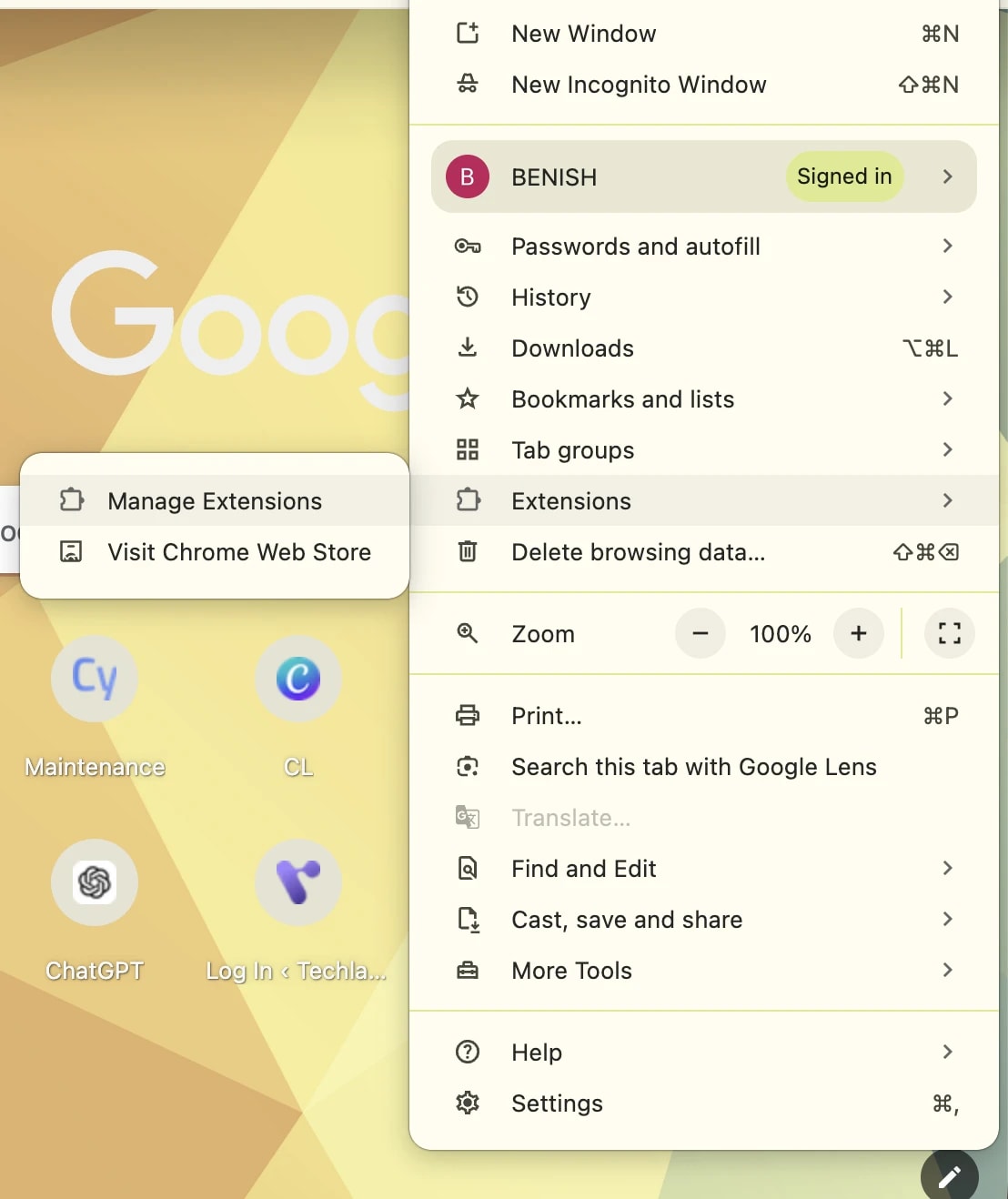
Many people think they have a virus when the real issue is a malicious extension.
Safari
Open Safari
Settings
Extensions
Chrome
Open Google Chrome
Extensions
Remove unknown add-ons
Firefox
Open Mozilla Firefox
Add-ons Manager
Also Reset:
Homepage
Default search engine
Notification permissions
Pop-up permissions
This often fixes fake malware alerts.
Step 6: Use Apple’s Built-In Malware Protection

Apple includes quiet background defenses.
XProtect
Scans for known threats automatically.
Gatekeeper
Blocks untrusted apps.
Notarization
Apps outside the App Store can be checked by Apple before running.
Why It Matters
If your Mac is updated, these protections already help. But they don’t always catch aggressive adware or new scams quickly enough.
Step 7: Run a Trusted Malware Scanner
If you want the fastest answer, run a reputable scanner built for Mac.
Popular options include:
Malwarebytes
Bitdefender
Intego
Norton
What They Detect
Adware
Spyware
Browser hijackers
Trojans
Launch agents
Persistence files
Always download from official vendor websites.
Step 8: Check Privacy Permissions
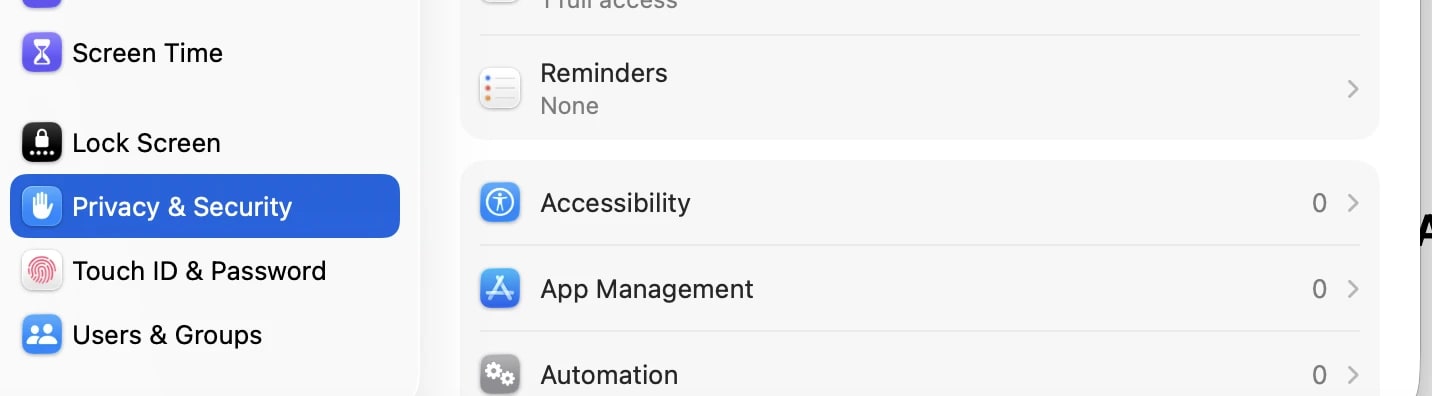
Modern malware often wants access rather than control.
Review These Permissions
Open System Settings
Privacy & Security
Check:
Full Disk Access
Accessibility
Screen Recording
Microphone
Camera
Files and Folders
Remove permissions for anything suspicious.
Step 9: Check These Hidden Persistence Areas
Advanced Mac malware may use startup folders.
Common Locations
LaunchAgents
LaunchDaemons
Login Items
Browser startup settings
If you are an advanced user, review Library folders for unknown plist files.
If unsure, use a security scanner instead of deleting random system files.
Real Mac Malware Seen in Recent Years
Examples that affected Mac users include:
Silver Sparrow
AdLoad
BrowserAssistant
Atomic Stealer variants
These threats prove Macs remain a real target.
How to Remove Malware From Mac
If you confirm infection:
Disconnect from suspicious websites
Delete suspicious apps
Remove browser extensions
Remove login items
Run malware scan
Restart Mac
Update macOS
Change passwords
Prioritize passwords for:
Apple ID
Email
Banking
Password manager
Social media
Pros and Cons of Checking Malware Manually
Pros
Free
Helps you learn your system
Good for adware cleanup
No extra software needed
Cons
Easy to miss hidden threats
Risk of deleting the wrong files
Time consuming
Not ideal for spyware or stealers
How to Prevent Malware on Mac in 2026
Use Trusted Sources
Install apps from Apple or known vendors.
Avoid Fake Pop-Ups
Never trust pages claiming instant infection.
Keep Everything Updated
Update:
macOS
Browsers
Security software
Productivity apps
Use Strong Passwords
Use unique passwords and two-factor authentication.
Limit Extensions
Install only what you truly need.
Back Up Your Mac
Use Time Machine or cloud backup tools.
Most “Mac Malware” Cases Aren’t Malware
Many users panic when the real issue is:
Too many startup apps
Low storage
Browser notifications
Old battery
Too many tabs
Extension conflicts
Always diagnose before assuming infection.
Final Thoughts
If you’re wondering how to check for malware on Mac in 2026, the smartest path is simple: update macOS, inspect Activity Monitor, review login items, clean browser extensions, and run a trusted malware scanner.
Most threats on Mac today are adware, scams, or credential theft tools rather than classic viruses. That means quick action often solves the problem before serious damage happens.
Your Mac is secure, but no device is hands-off secure. Smart habits, regular checks, and cautious downloads are what keep it safe.
Frequently Asked Questions
Does Mac need an antivirus in 2026?
Many users benefit from extra malware scanning, especially when downloading apps outside trusted sources.
How do I know if my Mac has malware?
Look for pop-ups, redirects, overheating, unknown apps, slowdowns, and suspicious login items.
Can Macs get viruses from Safari?
Safari itself is secure, but malicious websites, fake downloads, and bad extensions can create risk.
What is the best free malware scanner for Mac?
Trusted vendors often offer free versions, with Malwarebytes commonly considered a strong option.
Is resetting a Mac necessary after malware?
Usually no. Most threats can be removed without a factory reset unless the compromise is severe or persistent.